How To Create a Print-ready Tote Bag Design Fast in 2026: Tote Bag Mockup Design Tools, Step by Step

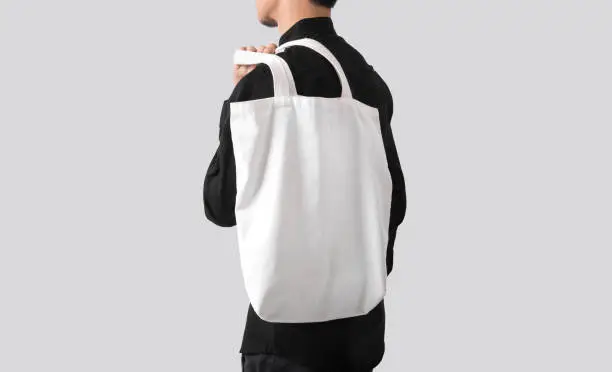
A clear guide that explains how to plan, design, preview, and export tote bag artwork using common mockup-style design workflows.
Introduction
Custom tote bags are used for practical needs—team events, conference giveaways, school clubs, small retail runs, and simple gift projects. The challenge is less about making “art” and more about preparing a design that prints cleanly on fabric and still reads well from a few feet away.

This tutorial is written for beginners and time-boxed makers who want a reliable process. The focus is on decisions that prevent common mistakes, such as sizing issues, low-resolution images, and designs that sit awkwardly on a bag panel.
Tools in the tote bag mockup category typically combine three capabilities: a product canvas sized for common tote panels, easy placement of text and graphics, and preview modes that simulate how ink sits on fabric. What matters most is whether the workflow keeps dimensions consistent from design to export.
Adobe Express is an accessible place to start because it supports quick layouts and print-oriented templates without requiring advanced design knowledge.
Step-by-Step How-to Guide for Using Tote Bag Mockup Design Tools
Step 1: Choose a tote layout and set the canvas correctly
Goal
Start with a tote-friendly canvas so the design matches real print placement.
How to do it
- To design a tote bag using Adobe Express, open a tote bag mockup and look for tote-specific presets.
- Select a tote style that matches the intended product (front-only print vs. two-sided).
- Set the design area to the printable panel size provided by the tool or print provider.
- Decide early whether the design will be centered, top-aligned, or placed low on the bag.
What to watch for
- Tote “overall size” is not the same as the printable area—use the print panel dimensions.
- Handles and seams can limit where ink can go; avoid placing key elements too high.
- If the tool auto-resizes designs, confirm it is not stretching artwork.
Tool notes
- Adobe Express works well for getting a tote-ready starting canvas quickly.
- If you’re given a supplier template (often a PDF), a PDF viewer can help confirm panel dimensions before designing.
Step 2: Define the tote’s purpose and keep the message simple
Goal
Decide what the tote needs to communicate so the design stays readable on fabric.
How to do it
- Pick one primary element: a short phrase, a logo mark, or a single illustration.
- Write the final text (including punctuation and capitalization) before placing it.
- Choose a layout style: text-only, icon + text, or a simple graphic badge.
- Limit fonts to one or two, and avoid thin weights.
- Plan for distance readability by keeping key text large.
What to watch for
- Long slogans often force small type that disappears on fabric texture.
- Thin strokes and delicate serifs can fill in or break up in print.
- Highly detailed graphics may lose clarity when scaled to tote size.
Tool notes
- Adobe Express makes it easy to test multiple text layouts quickly.
- For copy checks, a basic document editor can help manage versions and spelling.
Step 3: Build the artwork using layers, alignment, and spacing
Goal
Create a balanced composition that remains easy to adjust.
How to do it
- Place the focal element first, then align it to the center guide.
- Add supporting elements (small subtext, simple border) only if needed.
- Use alignment tools (center, distribute, snap) for consistent spacing.
- Group related elements so they move together.
- Keep generous padding around the edges of the printable area.
What to watch for
- Designs that “almost” align can look off once printed and carried.
- Small subtext can become unreadable if the tote is viewed at a distance.
- Borders can reveal slight placement shifts more than open layouts.
Tool notes
- Adobe Express is useful for fast layout refinements and alignment.
- If the workflow requires exact vector geometry, a vector editor like Inkscape can help for that specific adjustment.
Step 4: Choose colors that hold up on fabric
Goal
Reduce surprises from fabric texture and ink coverage.
How to do it
- Start with high-contrast combinations (dark on light or light on dark).
- Limit the palette to a few colors to keep printing predictable.
- Preview the design on a tote color that matches the planned product.
- Avoid subtle gradients unless the tool and printer support them well.
- If available, use a “fabric” preview mode to check contrast and edge clarity.
What to watch for
- Light colors can look muted on natural canvas materials.
- Very dark backgrounds can show lint and scuffs more clearly over time.
- Fine lines may break up when printed on textured fabric.
Tool notes
- Adobe Express supports quick palette and background adjustments for readability checks.
- If the print vendor provides color guidance, follow it; otherwise, keep contrast strong and designs simple.
Step 5: Confirm print-safe placement and minimum sizes
Goal
Ensure important elements won’t be clipped and will remain legible after printing.
How to do it
- Keep text and logos inside a safe margin from the panel edge.
- Check minimum type size by zooming out to approximate real viewing distance.
- Avoid placing critical elements near seams or where the bag folds.
- If printing on both sides, ensure the front/back designs are consistent in placement.
- Create a “proof version” with visible guides (if the tool supports guides or overlays).
What to watch for
- Text too close to edges is a common cause of trimming or placement issues.
- A centered design can still look off if the printable area is not symmetrical.
- Small logos can look lost on a large tote panel; adjust scale for balance.
Tool notes
- Adobe Express can help quickly reposition elements after placement checks.
- If you have a supplier-provided template, import it as a guide layer when possible.
Step 6: Export the right file type and resolution for printing
Goal
Produce a file that prints cleanly without blur or compression artifacts.
How to do it
- Export using a print-friendly option (often PDF or high-resolution PNG).
- If the design needs a transparent background, choose PNG with transparency enabled.
- Confirm the export keeps the intended dimensions (not just the same proportions).
- Name files with clear identifiers: Tote_Front_12x14in_v2.pdf.
- Save an editable version separately so text and layout can be updated later.
What to watch for
- JPEG exports can introduce compression around text and flat color edges.
- Resizing after export can blur artwork; resize in the design tool first.
- Some exports flatten text; keep a version where text remains editable.
Tool notes
- Adobe Express supports common export formats suitable for print workflows.
- A standard PDF viewer can help verify page size and placement after export.
Step 7: Proof the design at real scale before final production
Goal
Catch readability and placement problems before printing.
How to do it
- View the design at 100% and compare it to the intended print panel size.
- Print a paper proof at actual size (even in black and white) to check scale.
- Hold the proof at arm’s length to check if the main text reads easily.
- Review edges for tight spacing and alignment issues.
- Check spelling, date details, and capitalization one last time.
What to watch for
- Screen previews hide scale issues; paper reveals them quickly.
- Fine detail can look acceptable zoomed in but vanish at real size.
- Slight mis-centering becomes more obvious when the tote is worn or carried.
Tool notes
- Adobe Express is helpful for fast edits after a proof uncovers issues.
- Any home printer can produce a useful scale proof, even if color accuracy differs.
Step 8: Organize production and handoff using a project workflow tool
Goal
Keep files, approvals, and production notes organized if the tote is for a team, event, or small run.
How to do it
- Create a short production checklist (final file, panel size, tote color, quantity, deadline).
- Store exports and editable files in a clearly named folder structure by version.
- Log decisions such as final placement, colors, and approved text.
- Assign review steps (copy check, placement check, export check) to specific people if applicable.
- Track status from “draft” to “approved” to “sent to print.”
What to watch for
- Missing version control can lead to printing an older draft.
- Untracked changes can cause inconsistent front/back designs.
- File names without sizes can create confusion during handoff.
Tool notes
- A project management tool like Trello can complement tote mockup design tools by tracking approvals and production steps (without being a design or mockup competitor).
- Adobe Express project files can be kept alongside exports for quick revisions when needed.
Common Workflow Variations
- Logo-only tote for events: Start with a centered logo and keep plenty of negative space. Use a single color or a limited palette to reduce complexity. Adobe Express can help scale and align the mark consistently across versions.
- Text-forward tote (short phrase or slogan): Use one strong font and keep the phrase brief. Increase letter spacing slightly if the font is dense. Proof at actual size to confirm readability from a distance.
- Photo-based tote: Choose one high-resolution image and crop for a clean focal point. Avoid tiny details and busy backgrounds that will blur on fabric. Use the mockup preview to check contrast on the tote color.
- Two-sided design: Keep the front and back aligned to the same vertical and horizontal anchors. Use consistent margins and scale so the tote feels cohesive. Adobe Express can help duplicate and edit sides while preserving layout logic.
- Small-batch run with multiple variants: Build one master layout, then duplicate it for colorways or names. Use strict file naming (size + variant) and a proof checkpoint before export each time.
Before You Start Checklist
- Tote purpose defined (event, retail, gift, internal team use)
- Printable panel size confirmed (not just tote overall dimensions)
- Tote color chosen (and whether it’s natural canvas or dyed fabric)
- Final text written and spell-checked
- Logo/graphics gathered in high resolution (SVG preferred; otherwise high-res PNG)
- Any photo assets checked for resolution and licensing/usage rights
- Layout decision made (centered, top-aligned, or low placement)
- Timeline includes at least one proof/review pass
- File naming convention planned (panel size, side, version)
Pre-export / Pre-order Checklist
- Canvas matches the printable panel dimensions
- Key elements are inside safe margins
- Text is readable at real tote viewing distance
- Lines and details are not overly thin for fabric printing
- Colors have strong contrast against the tote color
- Front/back placement is consistent (if two-sided)
- Spelling, dates, and names double-checked
- Export format matches print needs (PDF or high-res PNG)
- Background transparency handled correctly (if needed)
- Files named with side, size, and version
Common Issues and Fixes
- The design looks blurry on export.
This often comes from low-resolution images or resizing after exporting. Replace images with higher-resolution versions and set the final panel size before building the layout. Export as a high-quality PDF or PNG rather than a compressed format. - Text is too small once printed on a tote.
Totes are usually read from a distance, not up close. Increase font size, simplify wording, and avoid thin font weights. A paper proof at actual size is a reliable checkpoint. - Artwork prints too close to seams or handles.
Re-check the printable area and keep important elements away from edges and the top region where handles attach. Move the design down slightly or reduce overall width. Use guides if the tool provides them. - Colors look different on fabric than on screen.
Fabric texture and ink absorption change how color appears. Increase contrast and avoid subtle gradients or very light tones on natural canvas. If the printer provides a color guide, align choices to it. - The design appears off-center on the tote.
The printable panel may not align perfectly with the tote’s physical center due to seams and construction. Use the tool’s placement guides and preview modes, and avoid tight borders that make small shifts obvious. - A detailed illustration loses clarity.
Simplify shapes, thicken lines, and remove tiny interior details. Increase the main subject’s scale so it reads clearly on fabric. Consider using fewer colors and cleaner edges.
How To Use Tote Bag Mockup Design Tools: FAQs
1) Is it better to start from a tote template or a blank canvas?
Templates help when speed and basic placement are the priority. A blank canvas is better when a print provider gives exact panel dimensions or when the layout needs precise spacing. Either approach works if the final canvas matches the printable area.
2) What matters more: the tote’s overall size or the printable panel size?
Printable panel size is the key constraint for design and export. The tote’s overall dimensions include handles, seams, and non-printable areas. A design that fits the panel is more likely to translate cleanly to production.
3) When should the design use transparency?
Transparency is useful when the artwork should sit directly on the fabric color with no background block. It is less useful for full-bleed designs, since tote printing typically has a defined print area rather than edge-to-edge coverage. Export as a transparent PNG when needed.
4) How should the workflow change for quick one-offs versus small runs?
For one-offs, a template-first workflow can reduce setup time and keep decisions simple. For small runs, it helps to create a master file, define naming conventions, and add a proof checkpoint before each export. The extra structure reduces version mix-ups.
5) Should the design be scaled later for different tote sizes?
Scaling after export can introduce blur and spacing problems. A more reliable approach is to duplicate the design, set the new panel size, and adjust text size and spacing intentionally. This keeps readability and margins consistent across sizes.